
Programming
Information kiosk in the office: accessible to everyone
A dead kiosk from a commercial system without support has been revitalised: custom app, five Braille buttons, Polish local voice, and a sensor that greets approaching users. Data flows from the portal's CMS and intranet, while monitoring automatically reports failures via SMS.
29/10/2026
Two information boards hang in the lobby of the Town Hall in Stary Sącz, displaying a list of offices, news, and a building map. The board shows the same information to everyone. There was a need for a place where individuals could ask their own questions: where do I submit my tax declaration, where is the cashier, what do I bring to get married?
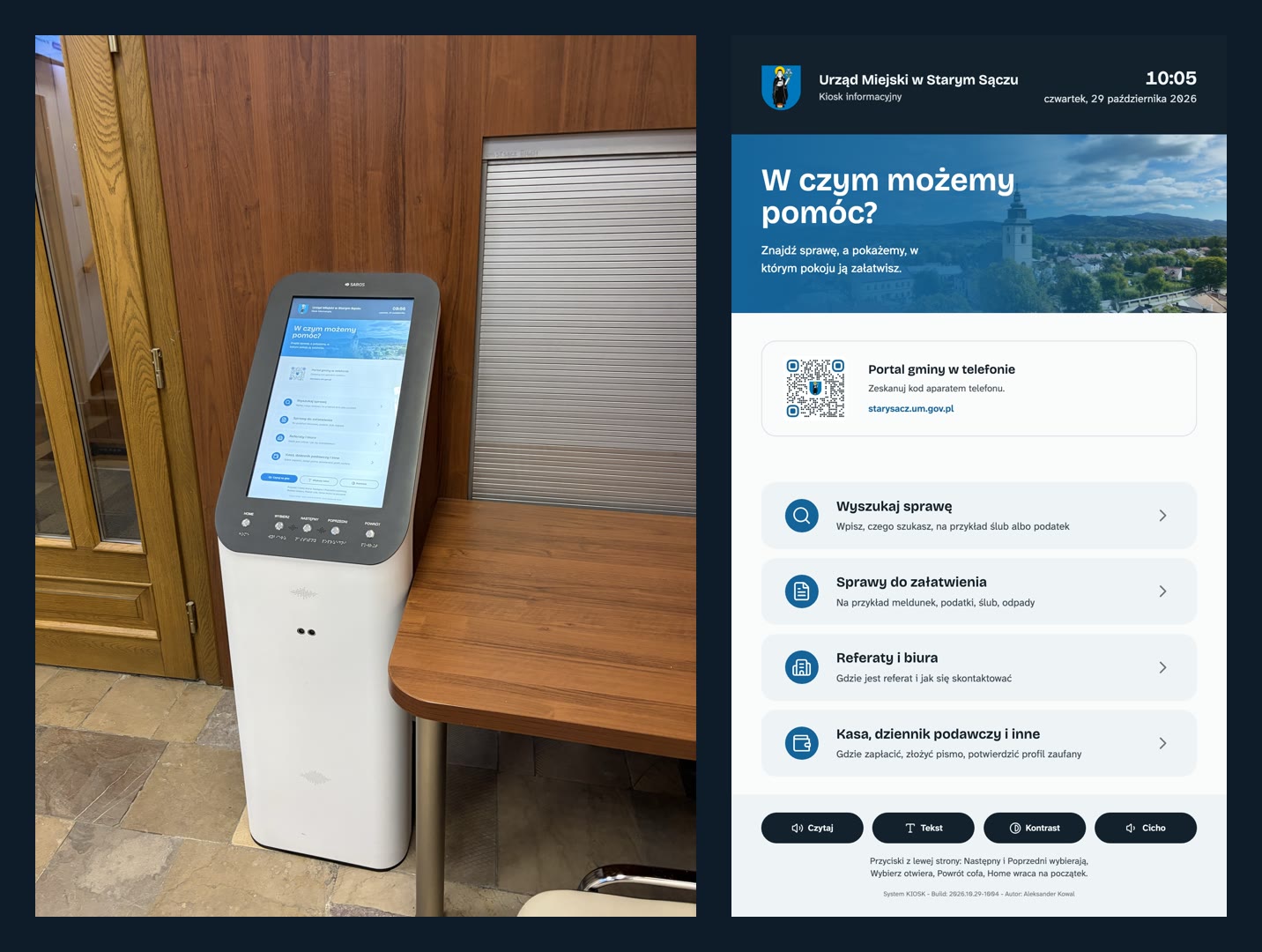
This gap is filled by the information kiosk. It has stood in the office for years, but it has been non-functional for a long time. Now it operates on new software that I wrote from scratch, and it is primarily designed for people with disabilities.
The complete set in the foyer: boards, a stop, and an information kiosk
The devices in the hall and outside the office now form a single unit:
- the room board shows which department is in which building and on which floor,
- the slide board displays current news, events, weather, and a building map
- the bus stop display on the Słoneczne estate shows the next bus departures,
- the kiosk answers specific questions and guides users to the right room.
All of them use the same data, fonts, and color palette. The resident sees the same room number on the kiosk as on the board and the municipal portal. I described the details of the boards in the entries Information boards in the hall of the office and Bus stop board with MPK departures.
Starting Point: Kiosk Without Support
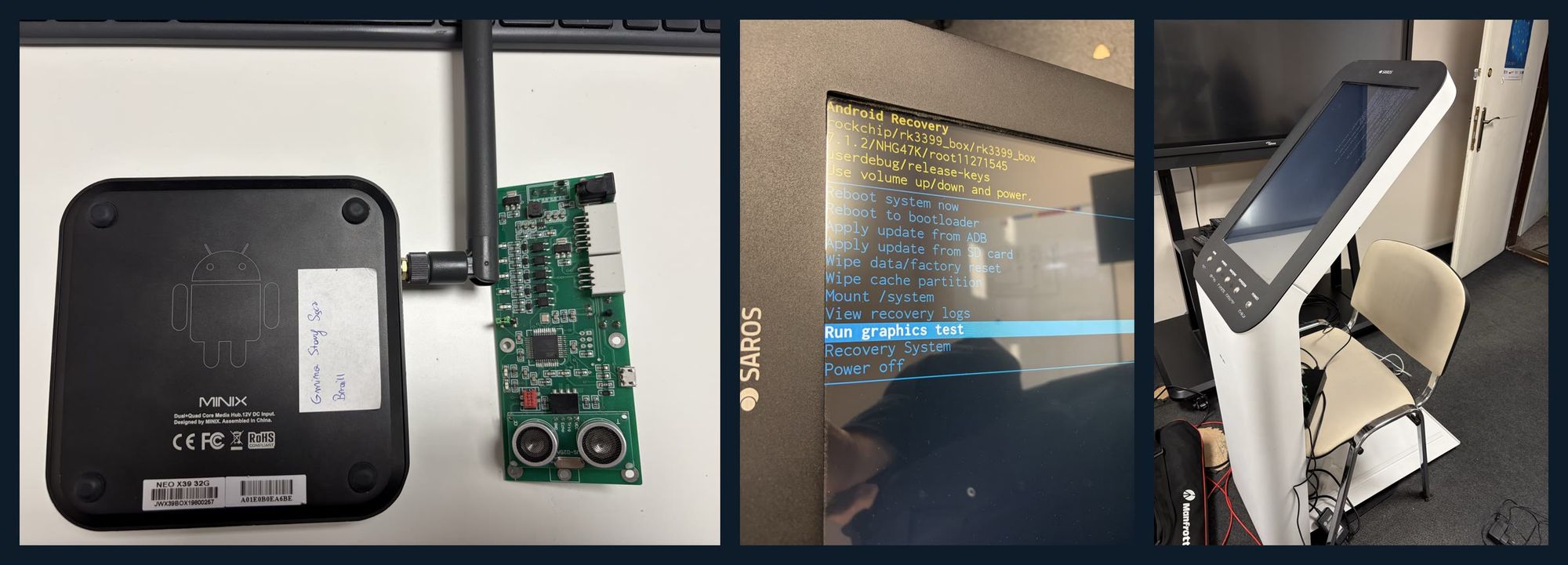
The kiosk is a vertical touchscreen SAROS stand with five buttons labelled in Braille and a presence sensor. Inside, it housed a small Android 7 computer from 2017 running a commercial digital signage platform app.
The problem was that all the software lived in the cloud of the provider:
- the content and configuration were not stored on the device but fetched from a server,
- support for this installation had expired, so the kiosk only showed a waiting screen,
- the application exit was blocked by a separate lock with a PIN code that no one knew,
- the system hadn't received security updates for years.
The casing, screen, and buttons were in excellent condition. It was a shame to throw them away.
Step-by-step debugging
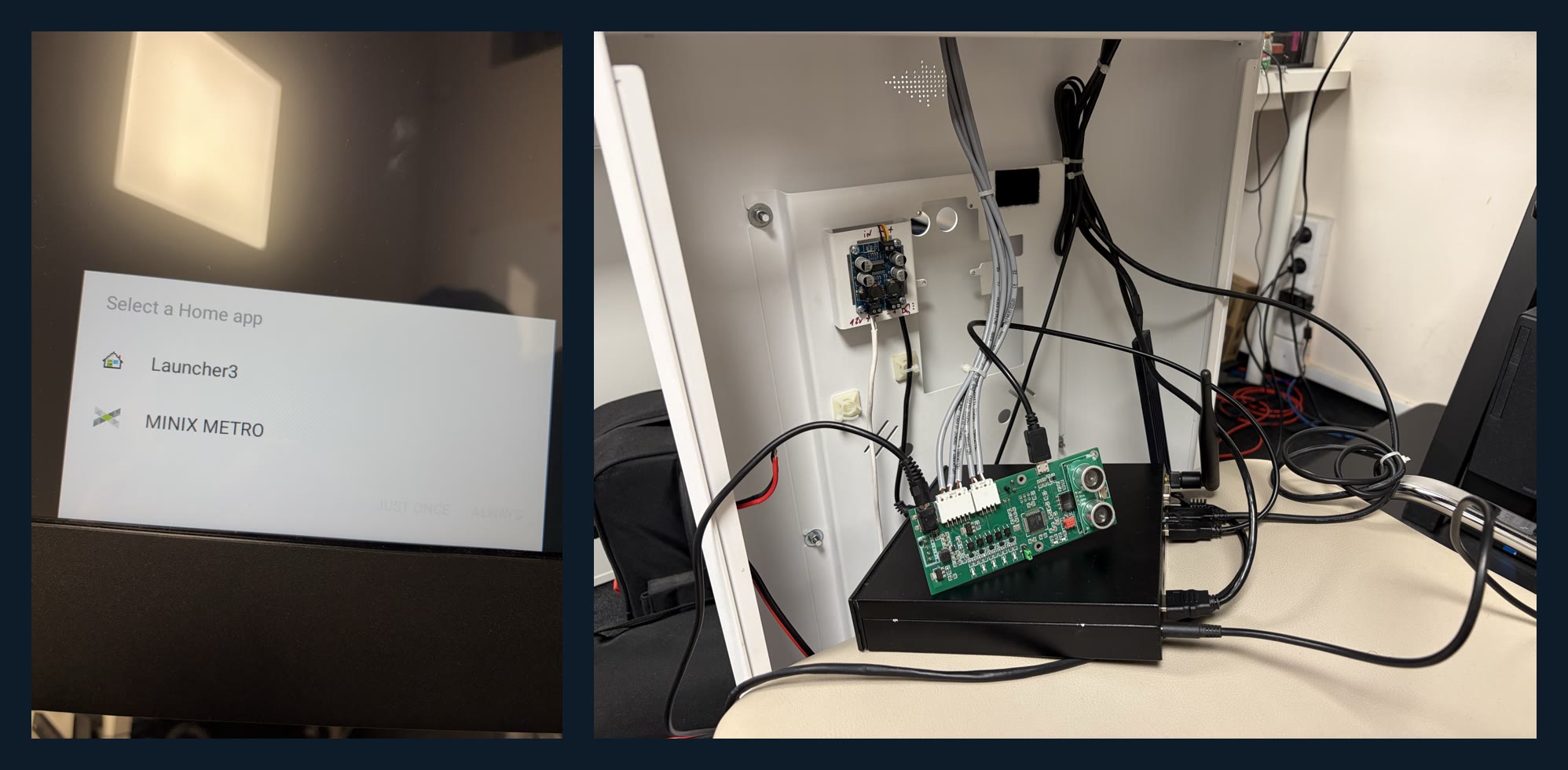
I started by checking if anything could be recovered. Using the Android recovery menu, I wiped the device, which removed the PIN lock and the old app. It turned out that this particular model didn't have a USB debug port, and flashing Linux on an ARM processor risked leaving the device without an image or touchscreen.
So I only replaced the computer. The case now houses a small, quiet x86 computer running Debian 13. The rest of the hardware remains unchanged.
Button plate
The buttons and sensor are handled by a separate board with the ATmega32U4 microcontroller, the same one used in the Arduino Leonardo. There was no original program on it; instead, there was a test sketch that assumed incorrect pins and displayed a distance of 0 cm.
- I wrote a diagnostic sketch that determined which pin corresponds to which button,
- then a new firmware with a simple text protocol: button press and the person's distance from the kiosk,
- I program the board remotely through the kiosk itself, without having to open the casing.
Rotated screen and touch interaction
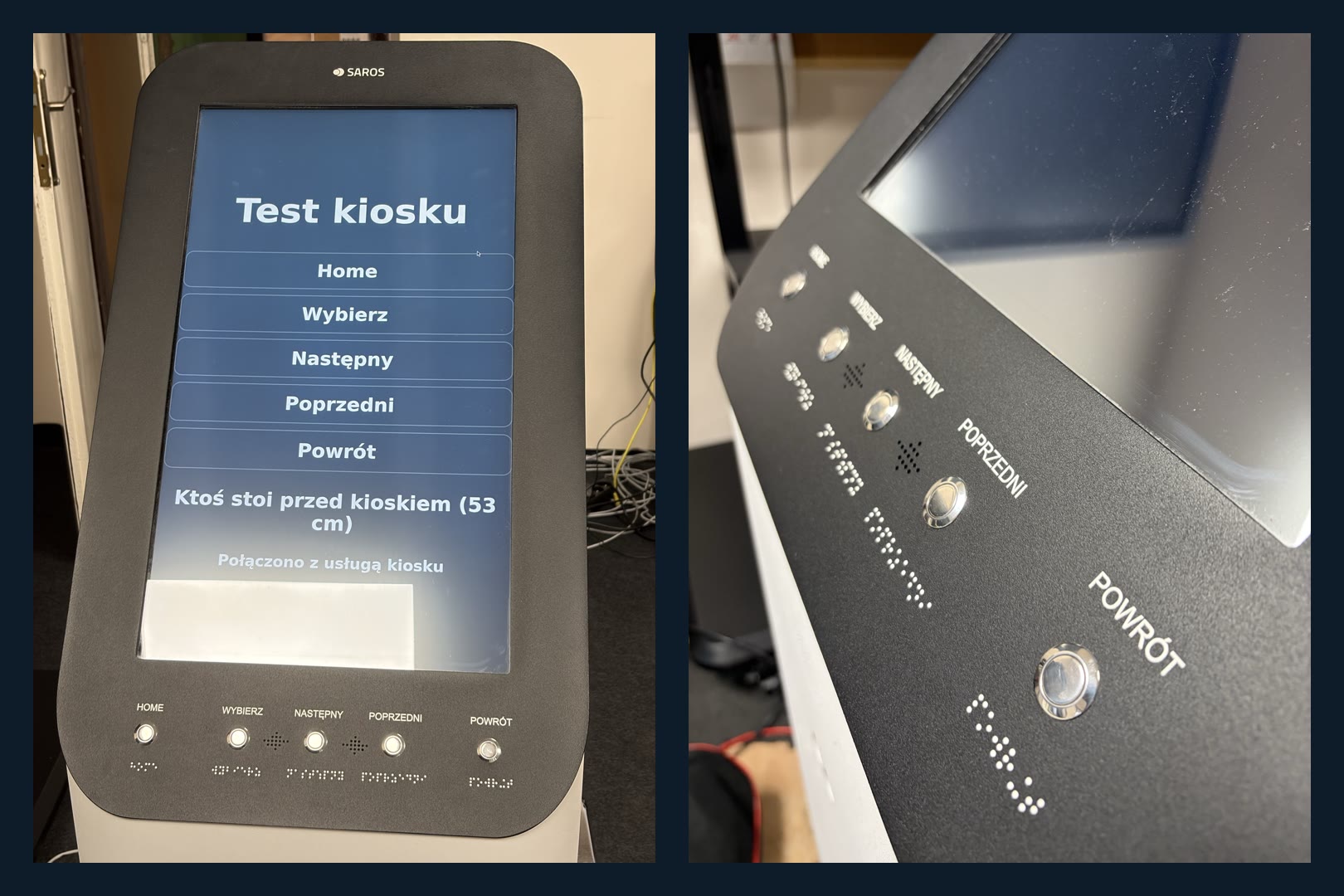
The monitor is standing vertically in the casing, so the image needs to be rotated by 90 degrees. The touchscreen doesn't rotate with the image, so I prepared a calibration page with five points. From the measurements, I calculated the calibration matrix and entered it into the system. Now the touch works with an accuracy of about a centimeter, which is more than enough for large buttons.
What the Kiosk Can Do
The startup screen asks, “How can we assist you?” and offers four options:
- a case search engine with an on-screen keyboard that understands input without Polish characters (e.g., 'slub' will find 'ślub')
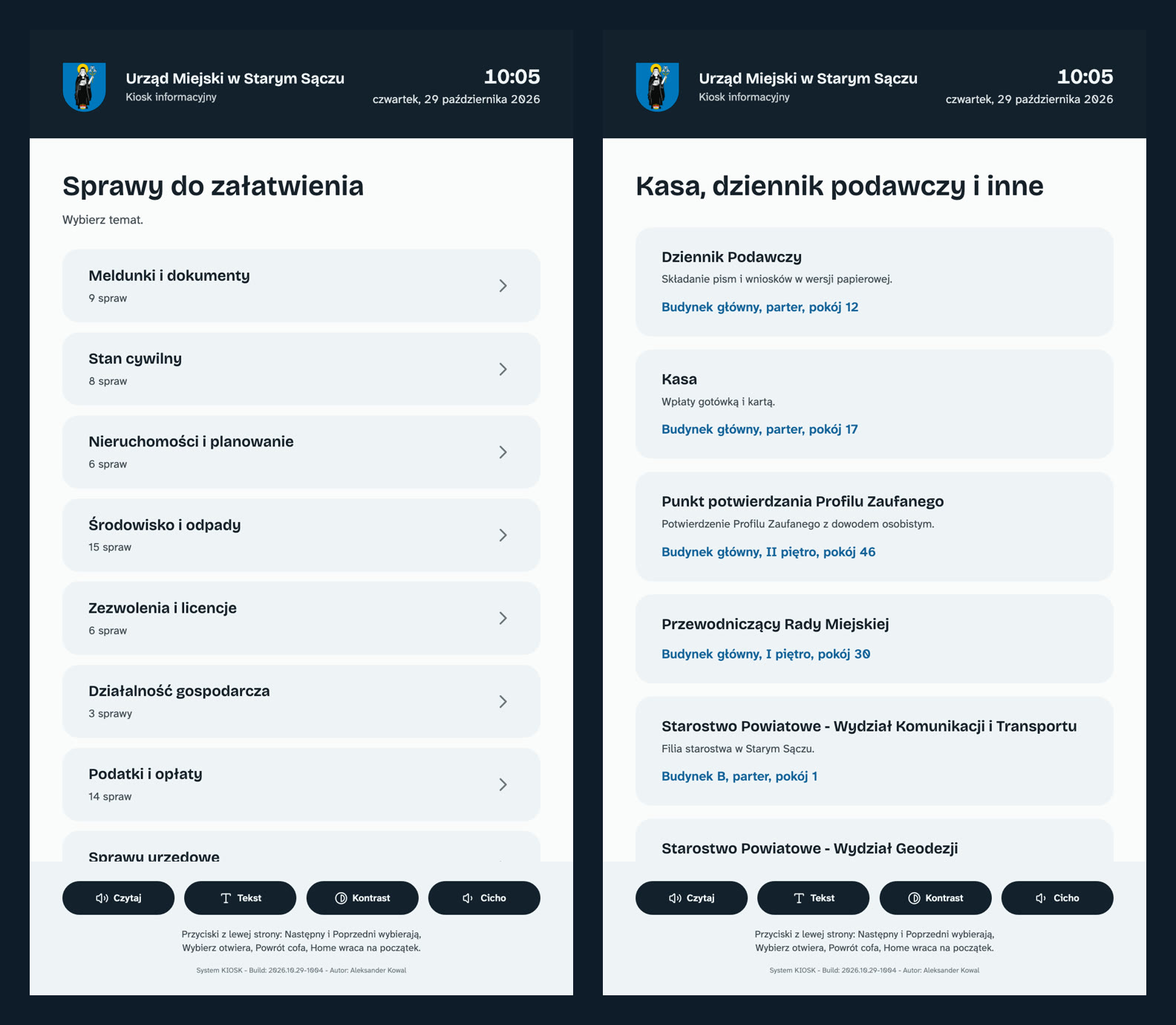
- tasks grouped into categories such as check-in, taxes, marriage, waste management, etc.,
- offices and departments with their locations, phone numbers, and opening hours,
- cash desk, mail registry, point for confirming trusted profiles, and county office branches.
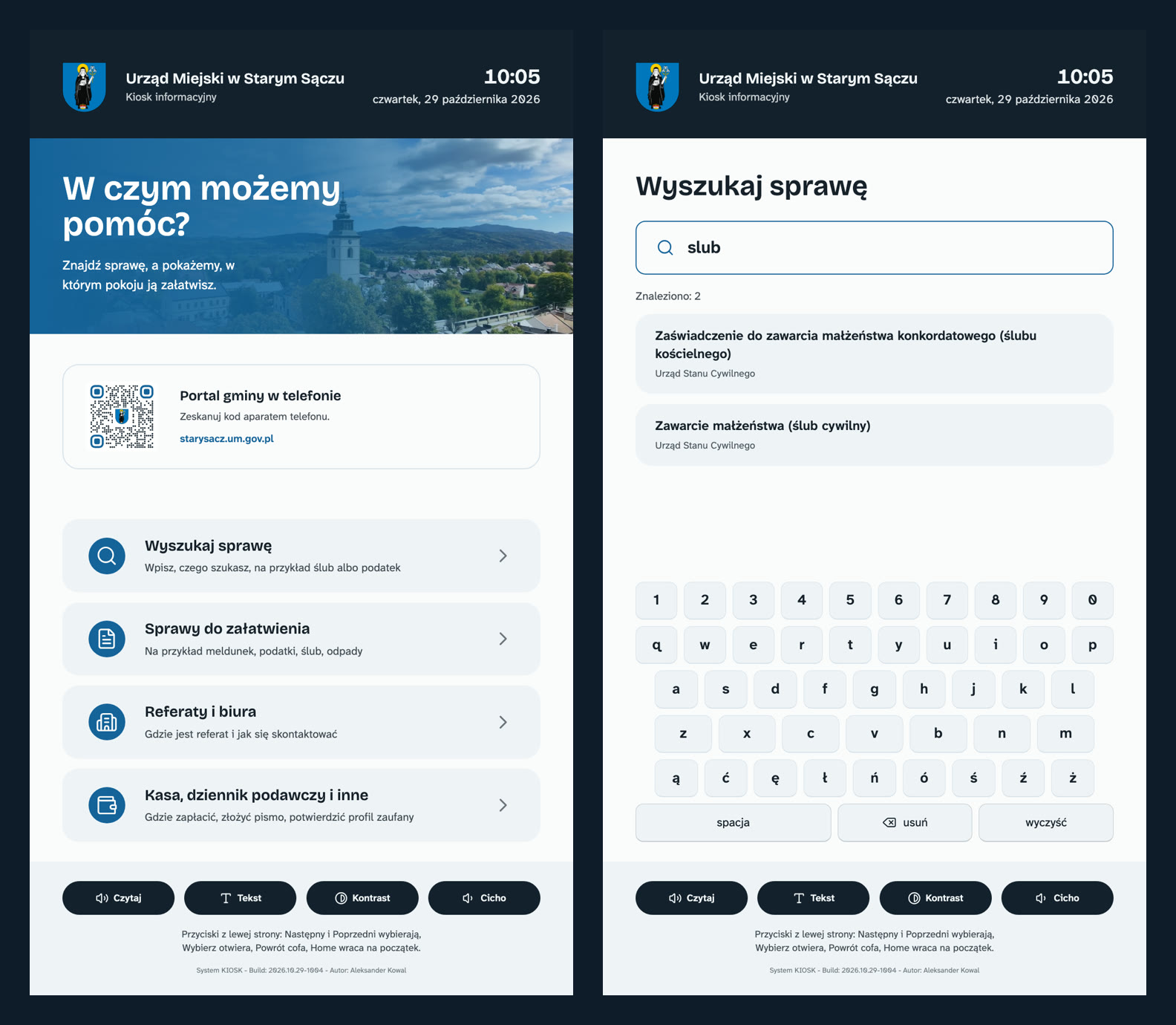
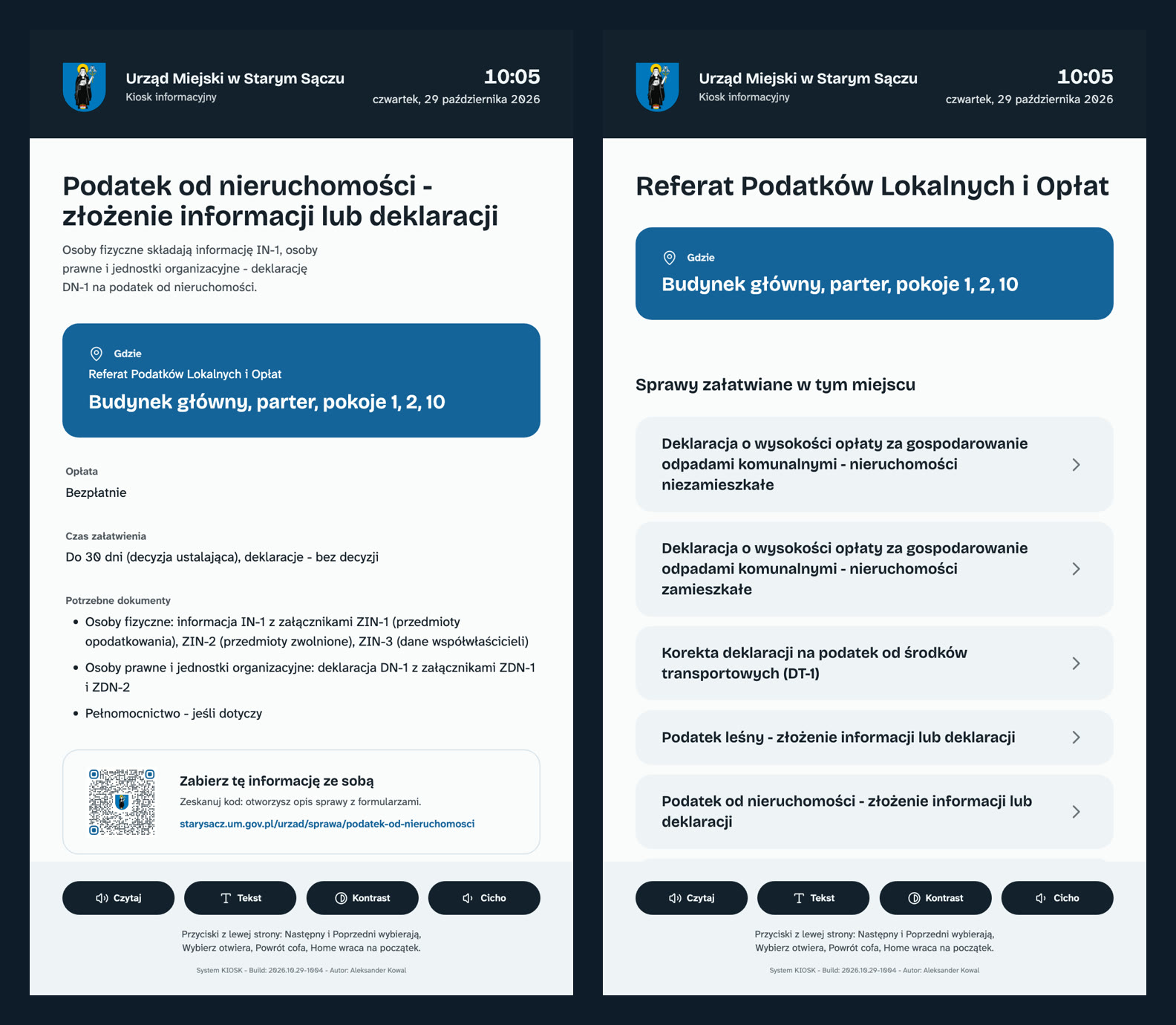
The information card addresses the questions that people approach the reception desk with:
- where: building, floor and room number, highlighted at the top,
- how much does it cost and how long does it take,
- what documents you need to bring,
- the QR code “Take this information with you” opens the case description with forms in the phone.
From the department card, you can access all the matters that are handled in the same location.
Accessibility First and Foremost
From the start, I assumed that a blind person, someone with low vision, someone in a wheelchair, and an older person who doesn't like touchscreens would use the kiosk. That's why it can be fully operated without touching the screen.
Five buttons and a voice
- Next and Previous navigate between elements, Select opens the item, Back goes back, Home returns to the start
- the first press of any button automatically triggers voiceover because most people using buttons need audio support
- the kiosk reads each selected item and the entire case sheet, including the room number and document list,
- the volume has three levels and always starts from the quietest one.
A Polish voice without the cloud
The Linux browser doesn't have a good Polish voice, and sending text to an external service wasn't an option. Speech is synthesised by Piper, a local engine running on the kiosk computer. Statements are cached, so frequently read sentences sound immediate.
Piper struggles with numbers, so before synthesis I convert them to words. The kiosk reads phone numbers digit by digit, ‘2nd floor’ as ‘second floor’, and amounts with correct declension - ‘złoty, złote, złotych’.
The kiosk knows someone has approached it
The ultrasonic sensor measures the distance from the kiosk. When someone stands within approximately 1.2 meters, the kiosk greets them with a voice message and suggests that the buttons are on the left side of the screen. The greeting does not repeat more frequently than once per minute and does not interrupt anyone already using the kiosk.
Readability and order after the visit
- the Larger Text and High Contrast buttons enlarge the font size and enable high contrast mode,
- the Atkinson Hyperlegible Next font was designed with low-vision individuals in mind,
- the accessibility switches are at the bottom of the screen, within reach for someone in a wheelchair,
- after 90 seconds of inactivity, the kiosk returns to the starting point and turns off voice, contrast, and magnification so that the next person can start from scratch.
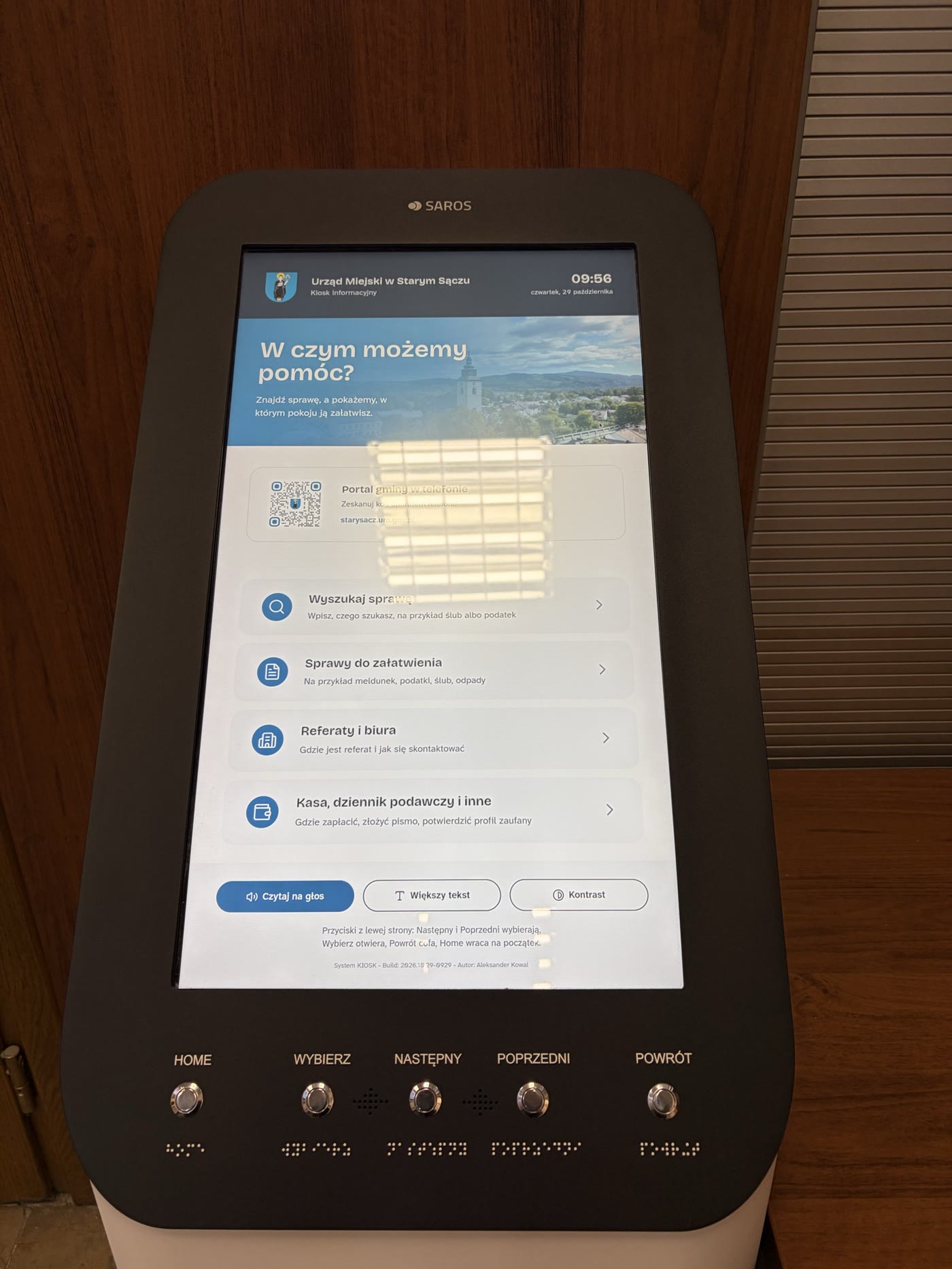
The most important test wasn't technical. The kiosk needs to guide someone who can't see the screen from the entrance to the right room.
- Aleksander Kowal
Data from the intranet and portal's CMS
The kiosk doesn't have its own content database, and there's no need for anyone to manually update it. The services, departments, and locations come from the same CMS used by the municipal portal. Room locations were sourced from the municipal intranet.
- the employee updates the case description in the portal panel, and the change appears on the kiosk within a quarter of an hour at most
- the kiosk displays only public information: the case, department, room, and general phone number, without employee data
- the kiosk server saves the last successful data to disk, so a failure of the CMS does not disable the kiosk,
- the screen does not refresh the content when someone is using it, but only when it's on the starting page.
Works autonomously
The kiosk stands alone in the lobby without any supervision, so it needs to take care of itself and signal problems before residents notice them.
- the system starts directly to the application with the municipal coat of arms instead of boot messages,
- Chromium runs in kiosk mode within the cage compositor, without a desktop and with no way to exit the browser,
- hardware watchdog restarts the computer when the system stops responding,
- every day at 4:00 AM, the kiosk performs a preventive reboot,
- the monitoring server checks if the screen is still requesting data and monitors the device's temperature, memory usage, and disk space
- in case of a failure, it sends an SMS and can remotely restart the browser or the entire computer,
- the supervisor account can only execute these three commands on the kiosk and nothing more,
- the kiosk connects to the office servers via WireGuard VPN, just like the boards do.
Cookie-free statistics
The kiosk sends anonymous statistics to the office's Matomo without cookies. It shows which services people search for most often, how often they use buttons and voice commands, and how many people approach the kiosk. This suggests which service descriptions should be improved first.
What's next
The next step is a building plan with the path to the room marked on it. In the future, the kiosk could potentially answer voice questions using an assistant that uses the same data as the portal.
Stack
- Astro 7 (SSR on Node), Tailwind v4, DaisyUI v5, Lucide, self-hosted fonts,
- The Directus portal of the municipality as a source of cases, departments and locations,
- Debian 13, cage and Chromium in kiosk mode, Plymouth, systemd with watchdog,
- Python: Kiosk service connecting the board, sensor, and speech through WebSocket,
- Piper TTS with a Polish voice, running locally,
- ATmega32U4 with custom firmware in an Arduino,
- WireGuard, SMS monitoring, Matomo without cookies, Docker.